
FTP Server
Studio’s FTP server can be used to upload lists of subscribers which can then be imported into either Mailing Lists or Suppression Lists.
- Table of Contents
- FTP Client Configuration
- FTP Client Configuration Example
- FTP Server Configuration
FTP Client Configuration
Please use the following settings when configuring an FTP client to connect to EmailIQ’s FTP server:
| Server Name |
The domain name portion of the URL that you visit when logging in to EmailIQ’s web interfaces. For example, if you login to EmailIQ at |
| Username and Password |
The same as what you use for EmailIQ’s web interface. |
| TLS |
If your FTP client has a STARTTLS option, then we recommend enabling it, but this is not required. |
FTP Client Configuration Example
Here’s an example of to configure the Cyberduck FTP client, which is available for Windows and macOS:
- Launch Cyberduck.
-
Click on the “Open Connection” link:

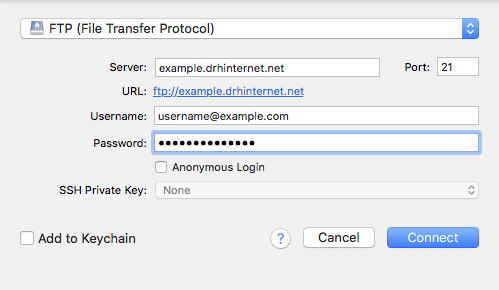
- Enter the following values, then click “Connect”:
- Server - the domain name portion of the URL that you visit when logging in to EmailIQ’s web interfaces.
- Username - the username that you use to login to EmailIQ’s web interface.
- Password - the password that you use to login to EmailIQ’s web interface.
-
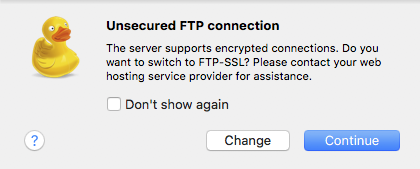
Switch to FTP-SSL if prompted:
FTP Server Configuration
The /var/hvmail/control/pure-ftpd.args configuration file contains a list of arguments to pass to the FTP server. Here are the default arguments:
--tls=1 --chrooteveryone -lextauth:/var/run/hvmail-pure-authd-studio.sock -O clf:/var/hvmail/log/pure-ftpd/xfer.log
See Pure-FTPd’s README file for a list of available arguments.
Changes to the above file are applied by restarting the FTP server:
svc -t /service/hvmail-pure-ftpd
The Default TLS Certificate is presented to clients in TLS-encrypted sessions.